The Alias and DevonTHINK

DevonTHINK is where I store all kinds information: lots of PDFs, emails, documents, etc. I find it specifically helpful as a kind of digital junk drawer, but I do sometimes use it for storing project support. For example, each year, I consult with high school administrators on building the school schedule. I receive a lot of input from people in the form of emails regarding schedule requests, so I can drag those into a folder for this project. I create some lists and other text-intensive materials as well, which I can either drop into DevonTHINK, or create in the applications text-creation suite.

I just don’t really like creating content inside of DevonTHINK. It supports Markdown, for example, but it’s utterly bare bones.

I do, however, like popping open TaskPaper or BBEdit (or another text editor) and whipping up a list. Until today, I figured that any list I created outside of DevonTHINK would have to be edited on creation and then preserved in virtual amber once I imported it into DevonTHINK

But it turns out that by command-option dragging a file into DevonTHINK, you can create an alias of the file in DevonTHINK’s database, but leave the file where it is. So if you like working in iA Writer, you can always go back there when you edit information that you’re linking to inside of DevonTHINK. It’s another example of this application’s crazy flexibility.

Essential iOS Software 2019

Much of what I use routinely on iOS has a Mac counterpart. And as a Mac user since 1993, long before the release of iOS, that’s to be expected. But in reviewing my usage, I realized that some applications have come into my life the other way: they started as iOS apps, and later became Mac applications. Hence the organization of this post; in section one, I list the applications that I have used on iOS that moved from the Mac to iOS. Section two is “Back to the Mac,” as the keynote went. Two apps I chose because I wanted both iOS and Mac coverage, which will increasingly and by necessity be the way many applications are released. Lastly, I list apps that are iOS only.

Mac > iOS

1Password: I went from someone who didn’t understand how a password manager could help me to a person who relies on it. It’s probably the most valuable app to me. What’s more, iOS now allows it to serve as the password database on your devices at a system level, which has improved the experience markedly. Prior to iOS 12, you had to use iOS’s version of Keychain if you wanted password management across the device.

TextExpander: Once indispensable, TextExpander is probably on the chopping block for me. I write less in volume and boilerplate these days, so it does little more than expand dates and my signature. Because it’s the only third-party snippet manager that enjoys wide application support, however, I’m reluctant to give it up.

OmniFocus: I’ve tried many others and have always come back. OmniFocus looks good, is continually improved upon, and is as simple or complex as you like.

Mail: I think it’s the best app for email on iOS for serious users. Others look nice and offer some clever features, but nothing helps you get through the crush like Mail.

Byword: I start most posts in Drafts but I publish from Byword. It has great WordPress and Medium support, and it looks great too, although it’s long in the tooth and possible abandoned. I used iAWriter for a while and I like it for most of the same reasons, but the WordPress support is different (and I don’t prefer it).

DayOne: I started writing some in MacJournal, then tried DayOne. This app syncs across devices, supports various media, and generally makes it easy to jot down ideas and thoughts. You can lock it up nice and tight, like a diary or journal.

GoodReads: I signed up for GoodReads a long time ago as a place to see what others are reading and to share my own reading list. Amazon’s purchase of the service led to integration into its Kindle device and Amazon’s ecosystem, making the service (and concurrent iOS app) far more useful to me as a wishlist aggregator primarily, but also a place to see what I’ve read, and when. The ability to maintain concurrent Kindle store wishlists and GoodReads leads to some inconsistency, though; it would be nice to be able to choose one or the other in the Kindle’s system settings.

Google Apps: As we use Google instead of MS Office at work, I have installed Drive, Docs, Sheets, and Slides on my iOS devices. Using the apps on iOS is not a great experience; knowing that your work is always accessible, however, is hard to beat.

Flickr: Another webservice-come-app.

iOS > Mac

Drafts: Drafts makes your life simple by letting you start there for almost everything: calendar entries, email messages, tweets, to-do items, blog posts… if it starts in text, you can start it in Drafts. As it grows in features, it will be a thing unto itself. There’s a Mac version in beta now, and it threatens extinction of my installation of Bear.

Unread: Unread syncs with Feed Wrangler, but the interface is pure iOS. It’s a great example of the difference between iOS and macOS. You swipe where you should swipe, and tap where you should tap. It’s a great example of a well thought out iOS app.

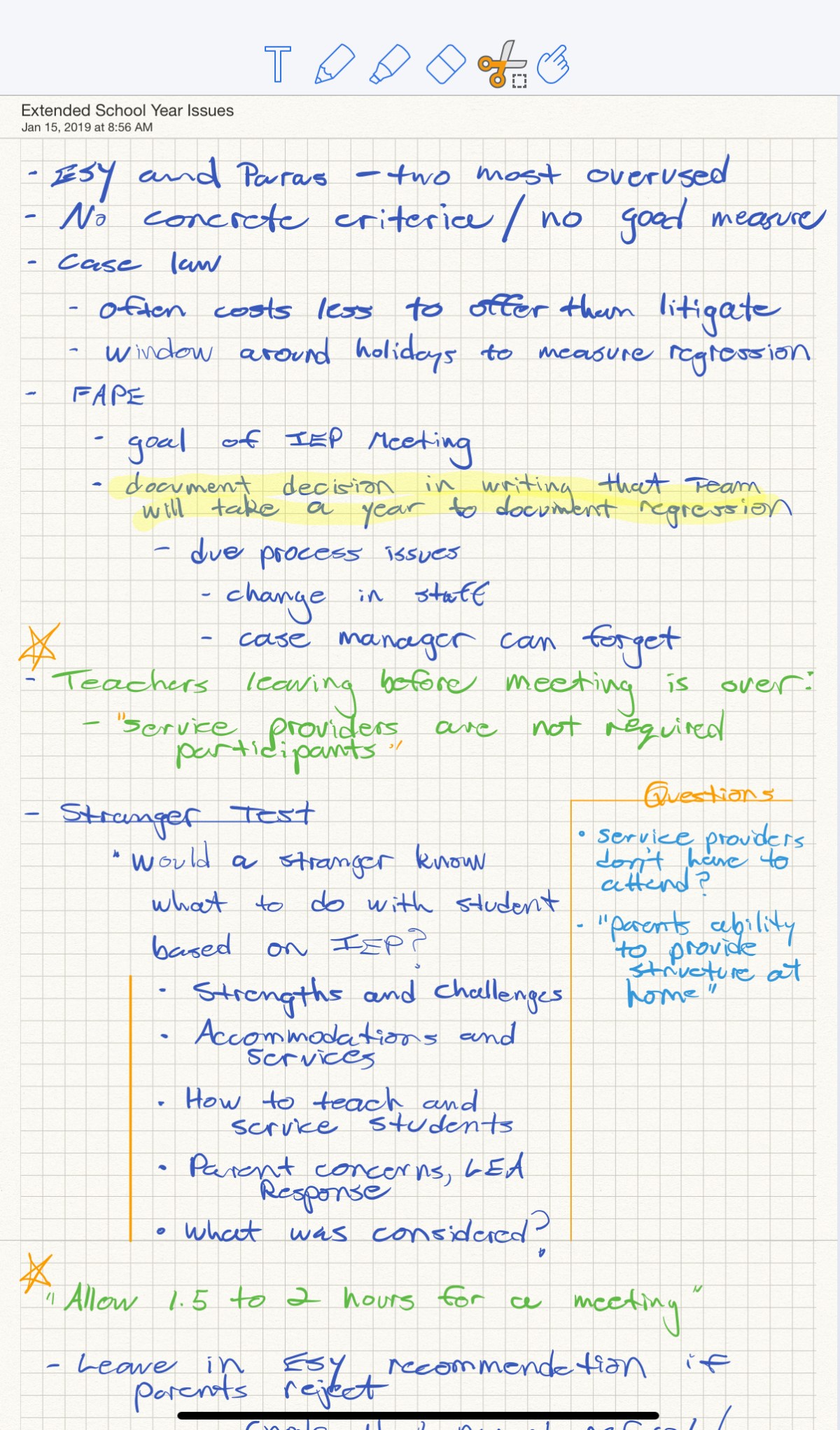
Notability:The only thing that compares to writing with a nice pen is writing with the Apple Pencil on an iPad in Notability. With the iPad Pro, you get pressure sensitivity, and with Notability, you get a fine writing experience with sync to the Mac version. It OCRs your text for easy search, too. The Mac version is really just a window into the iPad version for me; I don’t use it for note-taking on the Mac, as the metaphor is pen on paper. See my Making the Most of Notes post.

Tweetbot:This app has some strange touch affordances and the navigation gets a little mysterious sometimes, but it looks better than the rest of the third party apps. I was happy with the official client for the Mac for a while, but I like the reading sync between devices.

News: I check News on my phone throughout the day; since I skipped installing FB on my iPhone X, it’s my habitual tap. I don’t use it nearly as often on the Mac, but I do appreciate that the content is there.

So Happy Together

Bear: Bear keeps text notes all together. One day, it might give way to Drafts, I think, but for now, nothing looks quite so nice. The best feature is the pretend/append feature. It puts me in mind of Quicksliver and text files.

DEVONThink: I would have stuck with Yojimbo on the Mac if Bare Bones made a credible iOS version. Together’s Keep It is a serious contender in this space, but DEVONThink was already established when I made the move. Evernote is probably the king of this genre, but I’ve never much cared for it outside of the sheer convenience.

iOS Only

Dark Sky: I don’t need a weather app on the Mac; I just click the link to NOAA or Dark Sky’s web page. Dark Sky provides hyper-local forecast data. (We were on vacation once and Dark Sky informed me that it was going to stop raining in seven minutes. And. It. Did.)

Calcbot: Looks good, but the conversions make it worth every penny.

Downcast: This has been my podcast catcher for probably a decade.

Making the Most of Notes

Taking notes in classes and meetings of any kind used to be a straightforward affair: you either took notes on paper with a pen or pencil, or you didn’t. When you were a kid, you had marble notebooks full of notes. As you moved up from grade to grade, the notebooks grew thicker, their rules narrower, their spines bound with spiral metal coils. As an adult, maybe you had a journal; at the very least, you had a legal pad.

The modern note-taker, however, is faced with a choice: handwriting notes, as discussed above, or typing notes on a device.

Typing on a laptop or tablet offers some clear benefits: typing offers a clear speed advantage for anyone even passably conversant, and immediate cloud sync means you don’t have to worry about losing your notes. And while you might puzzle over what you meant to type, you will certainly be able to read the text. Lastly, typed notes are easy to share right away.

Handwritten notes, however, offer some benefits that might make up for the relative slowness and inconvenience of the practice. There is evidence, for example, that handwriting leads to better encoding (remembering what you wrote). Better encoding means more accurate recall. And the ability to annotate and spatially interject is hard to replicate in a text editor or outliner. Some people just like it better.

But it’s a false dichotomy to say that you can’t have one without the other.

Here’s what I tried:

Notability is a note-taking app for iOS and macOS that offers iCloud sync. I attended a workshop the other day and I took a few pages of notes in Notability using the Apple Pencil. I wrote, I moved things around, I formatted with different colors. I drew lines to other sections on the page. I drew arrows to let me know that one thing led to another. I created boxes on the side with ancillary information or sidebar data. I underlined and used color to distinguish the level of importance.

It was a nice way to work.

Notability

Notability will also spit out sections of handwriting as text. I was able to select sections of the notes and then have the software recognize the characters and turn my scratch into text. I had Notability drop the text into the clipboard (you can also opt for OCR right on the page), and I pasted the result into Bear.

In Bear, I cleaned up the formatting errors that Notability made in formatting and interpreting so that it matched the content of my handwritten notes. Performing this provided a valuable review of the topics and helped me focus on what I wanted to communicate to others at work. The notes are in Bear, where I usually store meeting notes.

Bear

I can’t say that I’ll always use Notability like this. Handwriting on the iPad uses up a lot more battery than typing. I won’t always have the Pencil with me. I won’t always want to review everything. But it does allay the sneaking sensation that typing notes isn’t as effective as my old handwritten method. The printed word forces a structure on the writer: top to bottom, left to right. Sure, you can use an outliner like Omni and drag sections around, but that’s not the same thing. But the digital advantages are very real.

DDC Stuff Sheath

Via Tools and Toys:

Sometimes, we just want our shit as “orange as possible.” And we all know what a back pocket on the back of yer jeans will do to a Field Notes memo book, right? So we made a little leather sheath. Just that simple. Just something to protect our latest Field Notes memo book, and, wrangle all the scraps of paper and what not that are always bouncing around in our pockets, or falling out of our Field Notes. Simple moves.

I carry a Moleskine Cahier around and it’s pretty beat up by the time I fill it up (I don’t do a lot of writing on the go; I have a stack of index cards at my desk and those are pretty much what I use for notes). This seems like a great idea.

Link

OmniFocus Notifications

OmniGroup:

OmniFocus 3.2 for Mac brings notifications to the Mac!

In Preferences, in the new Notifications pane, you can set notifications to appear on any combination of due, deferred, and latest start date. You can choose sounds for your notifications, too.

Speaking of notifications, remember Growl? Good times.

Apple’s Not Alone In China

Om Malik, writing about Apple’s revised quarterly guidance:

China slowdown is actually a much wider problem. It is unlikely that the Chinese government will ever talk about problems in its economy. So we are slowly starting to see US companies give their assessment of the Chinese economy. For instance, back in mid-December, when all of us were floating on cloud eggnog, FedEx was reporting earnings that pointed to tough times ahead. “The peak for global economic growth now appears to be behind us,” chief marketing officer Raj Subramaniam remarked on a conference call with investors.

And Trump’s trade war:

The trade war — which has gone from being a tweet to a tornado that has ripped the roof off one of Silicon Valley’s stalwarts. Trade wars obviously have a consequence, and Apple is suffering like every other luxury and fashion brand that has been too reliant on the Chinese consumer. Like Apple, they too have been puking on the side of the proverbial Wall Street. Tiffany, for instance, is down almost 14 percent over the past three months. Coach is performing even worse, almost as bad as LVMH, the company that owns Louis Vuitton, Loro Piana and a whole bunch of others.

Apple isn’t alone in feeling the pinch.

Link

Thus Spake iOS

M.G. Siegler touts a powerful iOS accessibility feature:

Basically, whether I’m in Safari or Pocket or Medium reading, I use the iOS ‘Speak Selection’ functionality to read things to me. You can do this almost anywhere within iOS (once you enable the feature in ‘Settings’) by selecting a block of text and hitting ‘Speak.’

This works nicely in the Kindle app as well. I’m embarrassed to admit that, as an Instapaper subscriber, I didn’t know about the reading function.

Listen on 500ish

Deadwood 2019

Deadwood from HBO returns:

[I]t’s about the town’s maturing and becoming part of the Union and what that event sets in motion, in a very personal way for the people that it brings in town and what ensues. The toll of time has not just struck Deadwood and the characters but all the people making it as well, you get to see the faces of people 12 years later. And it was really profound. Actors were crying at the table read — not necessarily from the script but the emotion of being back and doing something we all loved doing so much. You normally have a great experience and then it’s over. You don’t normally get the chance to do this in life. It was kind of a gift.

David Milch is a true auteur in this franchise.

Link

Chevy Camaro, WWI Bunker Edition

Mark Baruth of The Truth About Cars on the turbo, 4-cylinder Camaro:

Not a fan. All of things that make a Camaro bearable are missing from the four-cylinder turbo, and you still get all of the fun of a ridiculously small trunk, non-functional backseat, and WWI bunker comfort and visibility. Combine that with all-season tires and you’ve got a real loser on your hands. The EcoBoost Mustangs are superior in every way.

Link

Software in the Week Between

The week between Christmas and New Year is a good time to fart around with new software, some of which is often available on sale.

PopClip

PilotMoon’s PopClip utility is an extension that hovers an iOS-style bar over text that you select. You can then select actions from an extensive gallery of options. Your PopClip bar is customizable; you can add and obscure services you are likely to use. Likewise, you can interact with text from sources (i.e. look up a word or phrase, or tweet out a selection) or edit text of your creation (capitalize, title case, etc.).

PopClip Selecting Text in Safari

PopClip will not appeal as much to users who keep their hands on the keyboard, as it’s primarily a mouse-driven interface. It will, however, appeal to iOS users who rely on the text selection menu that appears inline when selecting text.

PopClip Actions Menu

PopClip is on sale for 50% off ($4.99 USD) on the Mac App Store.

PopClip Selecting Text in Drafts

Keyboard Maestro

Keyboard Maestro was around when macOS was “OS X” and had pinstripes. In short, this utility allows you to automate functions of the Mac by assigning keyboard shortcuts. Pre-programmed samples include searching Google for selected text using control-shift-g, and invoking a clipboard history using shift-control-command-v. You can, of course, create your shortcuts.

In the wake of TextExpander becoming a subscription service, Keyboard Maestro emerged as a viable replacement for those of us who shunned the new payment model.

Learning OmniFocus offers a selection of Keyboard Maestro macros for users who want to wrangle their task list from the keyboard. This is a great way to jump from any application to your OF inbox or any other perspective, for example.

KeyBoard Maestro Macros for OmniFocus

The Shelves

Gladys and Yoink are both emblematic of “shelf” apps; these are apps that allow you to park text snippets, images, or links, ideally for temporary storage while you decide where to put them. Both Gladys and Yoink offer iOS and macOS versions, and sync between devices. Gladys offers both a free and paid version ($0.99 USD); the free version allows you to keep 10 items in the application. Yoink offers a demo on macOS and paid versions on both platforms ($7.99 and $5.99 USD respectively).

Yoink on macOS

Both applications offer some advanced features. Yoink looks more like a proper Mac utility, with a transparent tray that slides out and varying ways to invoke the tray’s behavior. Gladys offers unique export options, like creating and expanding .ZIP archives.

Gladys on macOS

Glittering

The New York Times sets out to answer the question you didn’t ask: what is glitter?

Most of the glitter that adorns America’s name brand products is made in one of two places: The first is in New Jersey, but the second, however, is also in New Jersey. The first, the rumored farm site of glitter’s invention, refused to answer any of my questions. “We are a very private company,” a representative said via email. The second is Glitterex.

The bulk of Glitterex glitter is made from plastic, though some varieties come from other sources, like aluminum. Clear glitter looks like tiny pieces of a dead jellyfish. “Then,” he said, “we go into the next iteration of a substrate, where the clear film is metalized.” He picked up a shining silver strip of material. “Potato chips bags start with the same polyester film; it’s metalized with aluminum.”

Mylar, aluminum, and corporate intrigue!

What Is Glitter?

Fresh

Yoink! has been getting some positive press lately, and it (and a similar iOS app, Gladys) put me in mind of the excellent Fresh by Ironic Software. Fresh, which is macOS only, has a drop zone like Yoink!, but is a touch more complex. It shows recent documents as well as things you’ve put manually in the Cooler, and allows you to tag files. It’s fiddlier than Yoink! in a good way.

Adage Commercial

A commercial on Adage, “A Boy Finally Comes to Appreciate ‘Dad Dancing’ in This French Holiday Ad”:

A holiday spot by French telecom brand Bouyges tells the story of a father and son through the years, as the boy finally comes to appreciate his father’s “dad dancing.”

If you have kids and this doesn’t inspire the waterworks, you’re not hooked up right.

Adage